
TLDR
For reliable dark MTG proxy art printing, do not brighten every file indiscriminately. Inspect whether important shapes and textures remain separated in the shadows, make restrained corrections only where detail is closing up, and preserve an untouched original. Soft-proof against the intended output condition when a relevant profile is available, but treat that preview as a simulation. Before committing an entire deck or Cube, print a small batch containing your darkest, most detailed, and most text-sensitive cards.
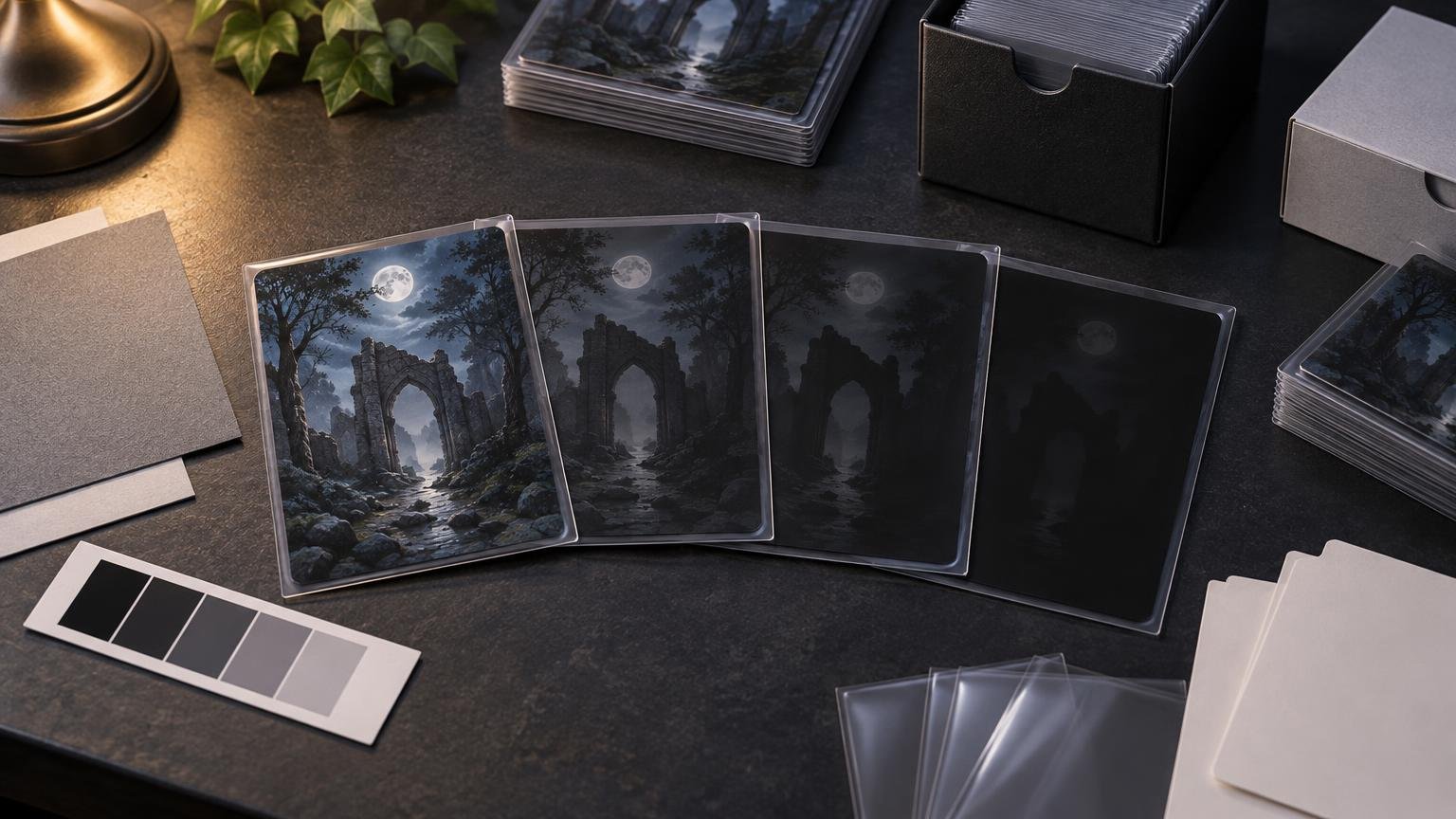
Dark alternate art can look dramatic on a bright display and muddy on a physical card. A monitor emits light, while a printed card is seen by reflected light under changing room conditions. Output media also have tonal limits that require adjustment across the tone scale, including the shadow region. That does not mean every print will be darker than its source; it means near-black distinctions that appear visible on a screen may not remain equally distinct in the finished output.
The practical goal is not to make a dark card look bright. It is to keep the information that matters: recognizable subjects, frame boundaries, rules text, mana symbols, collector details, and enough texture to stop a night scene from turning into one flat black area.
Why dark MTG proxy art printing loses detail
Start by identifying which part of the project is failing. A whole batch that feels darker than expected suggests a different problem from three muddy cards inside an otherwise consistent deck. PrintMTG’s color-consistency guidance identifies mismatched source images, contrast differences, and the behavior of the selected substrate or finish as potential contributors to inconsistent dark cards.
Common failure patterns include:
- The illustration contains several near-black tones that look separate on screen but merge in output.
- The display is bright enough to create an unrealistic expectation for the physical card.
- A black or dark frame blends into the illustration, obscuring borders and interface elements.
- Light text sits over a detailed dark background without enough local contrast.
- Files collected from different artists or sources have visibly different black points and contrast.
- Fine black text or lines were prepared with a black build unsuitable for small details.
- The source already contains clipped shadows, leaving no hidden texture for the printer to restore.
Compare the questionable card with a bright card and a dark card you already trust. If only one source file fails, correct that file. If every dark file looks wrong, review the display expectation, export settings, proofing setup, and provider requirements before editing the entire project.
Correct shadow separation, not overall brightness
A global brightness increase is tempting because it produces an immediate change. It can also flatten the mood, wash out black frames, weaken highlights, and make the adjusted card look inconsistent beside the rest of the deck. Work from the darkest important region outward instead.
- Duplicate the original and label the copy as a print-proof version.
- Inspect the illustration, frame, text box, icons, and small text separately at final output size.
- Check whether important shadow areas still contain visible transitions rather than one solid mass.
- Use a restrained curves, levels, or shadow adjustment to open only the tones that require separation.
- Protect highlights and intentional deep blacks so the image retains contrast.
- Zoom back out and compare the card with several normal cards from the same project.
- Export a clearly named proof file without overwriting the editable master.
Pay particular attention to faces, weapon edges, creature silhouettes, dark clothing against dark backgrounds, and textured areas that communicate depth. Not every black region needs detail. A deliberately solid frame or silhouette can remain black; the problem is losing information that the artwork or card interface needs.
If the source shadows are already clipped, lifting them may reveal only flat gray or compression artifacts. A printer cannot reconstruct detail absent from the file. In that case, return to the layered artwork or a better source rather than applying increasingly aggressive adjustments to a damaged export.
Use soft proofing as a preview, not a promise
Soft proofing simulates how a document may appear under an intended output condition. Photoshop can use an output profile and options such as Simulate Black Ink, Simulate Paper Color, and Black Point Compensation. Adobe says Black Point Compensation preserves shadow detail in the simulation and recommends it in most cases when it will also be used for printing. Adobe’s soft-proofing guide explains the available controls.
A useful soft-proof workflow is to open the untouched original and the adjusted proof version side by side, enable the relevant output condition, and watch the darkest textured regions. If the adjusted version preserves useful separation without making the frame gray or the highlights dull, it is a better proof candidate.
Do not select an unrelated ICC profile merely because it is available in the software. The simulation is useful only when its output condition relates to the actual workflow. No PrintMTG-specific downloadable ICC profile was identified in the supplied evidence, so ask the current provider what profile or conversion procedure it expects. If no relevant profile is supplied, prioritize a physical proof batch over elaborate simulation with a guessed profile.
Even with a relevant profile, a soft proof cannot guarantee an exact screen-to-card match. Stock, coating, color conversion, press conditions, and viewing light can all affect the result. Use the simulation to locate risk, then use a physical sample to approve the project.
Build a proof batch that is designed to fail usefully
A proof batch should represent the difficult parts of the full project, not its safest cards. Printing ten average files can produce ten reassuring samples while missing the one borderless night scene that will close up across an entire themed deck.
Include at least one example of each relevant stress case:
- A black-frame, artifact-heavy, or otherwise near-black card.
- A textured night scene with multiple dark colors.
- A borderless or full-art card whose image reaches the cut area.
- Small light text positioned over dark artwork.
- Fine black text or thin black lines.
- A bright, saturated card for comparison.
- The darkest or most complicated custom artwork in the project.
- Two files from different sources if the batch combines multiple art pipelines.
The existing MTG token print-quality guide uses the same representative-proof principle: test difficult dark art, small text, bright colors, borderless designs, and detailed text before scaling the project. For a competitive test gauntlet, the proof can also become the first controlled version of the repeatable workflow described in the competitive deck-testing print guide.
Check the file handoff before ordering
Provider specifications are time-sensitive, so verify them immediately before export. The current PrintMTG file-requirements page calls for CMYK artwork, at least 300 dpi at final size, a 2.5 by 3.5-inch trim size, and 0.125-inch bleed for edge-to-edge artwork. It also instructs users to use 100% K for fine text and thin lines rather than rich black. These are provider-specific handoff requirements, not universal settings for every printing process.
The fine-text distinction matters because “darker” is not automatically “cleaner.” A multi-ink rich black may be appropriate for some larger black areas in a particular workflow, but it should not be prescribed as a universal formula. Small type and thin rules need the treatment requested by the printer so registration differences do not soften their edges.
If you are sending the approved files through PrintMTG’s card-printing workflow, recheck its live requirements rather than relying on an old project folder. The Print MTG Cards homepage currently directs its decklist-upload action to PrintMTG, but submission options and production requirements can change.
Dark-art export checklist
- Confirm that every card uses the currently requested color mode and profile procedure.
- Verify resolution at final card size rather than relying only on the document’s pixel count.
- Check trim and bleed, especially on borderless art.
- Inspect fine text, thin lines, mana symbols, and collector information at output size.
- Keep front and back files paired correctly for double-faced or transform cards.
- Name proof revisions clearly so the wrong version cannot enter the full batch.
- Retain the source file, untouched export, corrected proof export, and final approved export.
Approve under realistic play conditions
Inspect the physical proof under the kind of lighting in which the deck will actually be used. Look at it flat on the table and sleeved, not only under a strong desk lamp. The subject should remain recognizable, important shadow texture should survive, and critical text should be readable without tilting the card toward a light source.
Also evaluate consistency across the batch. One beautifully open dark card can still be a poor correction if it looks gray beside 99 cards with deeper blacks. Approve the set as a deck, Cube module, or update batch—not as isolated images.
After approval, archive the exact files and the production context. Save the list, card quantities, set or collector identifiers, paired backs, export settings, proof date, provider instructions used, and photographs or notes showing which revision was accepted. That archive gives a future replacement batch a defined target even if the ordering interface or production options later change.
Frequently asked questions
Why did my dark proxy print darker than it looked on screen?
The display and physical card create color differently, and the output medium cannot necessarily preserve every near-black distinction visible on a bright monitor. Source contrast, conversion settings, material behavior, and viewing light may all contribute. Diagnose whether the problem affects one file or the entire batch before editing.
Should I brighten the entire card?
Usually not. Open the specific shadows that contain useful information while protecting intentional blacks, highlights, text, and frame contrast. A global adjustment can make the card washed out and inconsistent with the rest of the deck.
Does soft proofing show exactly how the card will print?
No. It is a screen simulation based on an output condition. It can reveal likely gamut and shadow problems, but it cannot reproduce every effect of the physical stock, coating, press, sleeve, or room lighting.
Should I enable Black Point Compensation?
Adobe recommends it in most proofing cases when it will also be used for printing, and describes it as preserving shadow detail. The important qualification is workflow consistency: the simulation setting should correspond with the intended print conversion rather than being enabled in isolation.
What is the difference between rich black and 100% K?
In CMYK work, 100% K uses only the black channel, while rich black combines black with additional inks. Larger black areas and fine text can have different production needs. Follow the current provider specification; PrintMTG’s published requirement calls for 100% K on fine text and thin lines and cautions against rich black for that use.
Final preflight
Before approving a full run, place the original, adjusted file, soft proof, and physical sample in one review sequence. Confirm that shadow corrections preserved the atmosphere of the art, critical details remain visible at card size, fine text follows the current handoff specification, and the darkest card still belongs visually with the rest of the deck. Then archive the approved revision before expanding the batch. That one controlled proof is more useful than trying to rescue an entire deck after every dark file has already been printed.