
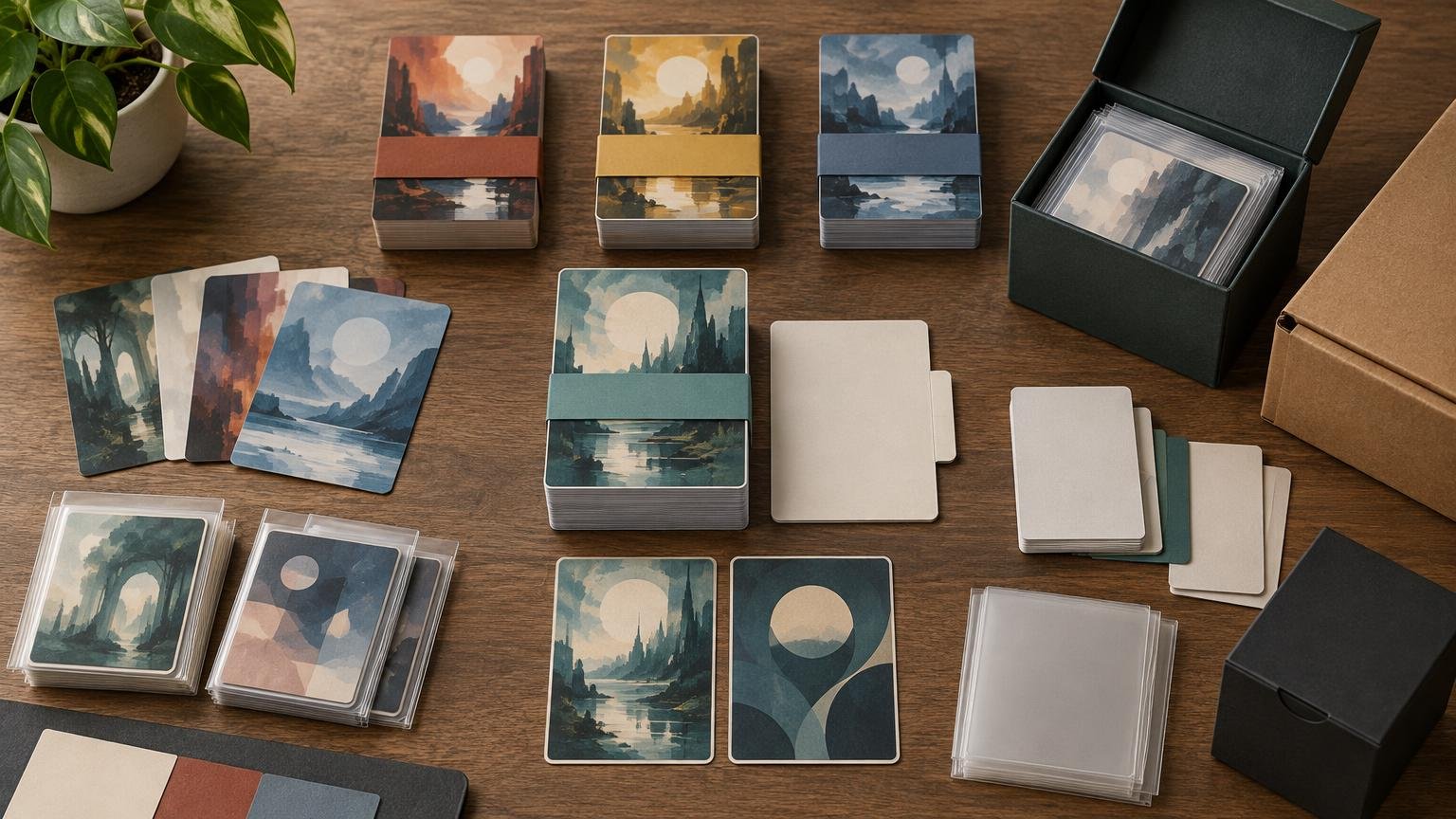
Printing a Cube in modules is safer than treating every update as one continuously changing list. The trick is to freeze each module as a named revision before it enters a print batch. That preserves quantities, art choices, double-faced card pairings, and a clear record of what is physically in the Cube.
This workflow is intended for clearly unofficial casual and playtest cards, not sanctioned tournament use. PrintMTGCards.com presents Cube refreshes, test batches, and larger Cube orders as distinct project types, with a small validation batch recommended before scaling.
TLDR
Maintain one master Cube manifest, but give every module its own version-controlled list. Record exact printings and quantities, lock the module before ordering, reconcile the imported cart against the locked file, and archive the approved proof with the batch record. Never edit a module that has already been printed; create a new revision instead.
Define modules before building the print batch
A module should represent an intentional Cube component: a guild package, archetype support set, seasonal update, power-level experiment, token package, or replacement group. It should not mean “whatever changed since last week.” A clear purpose makes later removal and reprinting much easier.
Assign each module a permanent identifier, such as GRAVEYARD-01 or AZORIUS-BLINK. Then assign revisions separately: GRAVEYARD-01-v1, GRAVEYARD-01-v2, and so on. The identifier describes the concept; the revision records its changing contents.
| Status | Meaning | Allowed action |
|---|---|---|
| Draft | The list is still changing | Add, remove, or replace cards |
| Proof | The list is being checked against previews and counts | Correct documented errors only |
| Locked | The exact module is approved for import | No edits; create a new revision |
| Printed | The module belongs to a recorded physical batch | Archive it unchanged |
| Retired | The module is no longer active in the Cube | Keep its history for reconstruction |
A single print order can contain several locked modules. Keep them separate in the archive even if they are combined for ordering. That prevents a future reorder from becoming a forensic exercise involving old spreadsheets, sleeves, and increasingly unreliable memory.
Build a master manifest that records versions, not just names
A Cube list containing only card names is not enough for stable batch production. Alternate art, showcase frames, and other treatments can create several visually different options for the same card. PrintMTG advises checking the exact card name, printing, quantity, text, and artwork before submission.
Use one row per physical card and capture the fields that matter to your visual standard:
- Module ID and module revision
- Card name and physical quantity
- Set code and collector number
- Language
- Frame, treatment, or art choice
- Front and back identifiers for double-faced cards
- Custom-file name, if applicable
- Status: draft, proof, locked, printed, or retired
- Print-batch ID and approval date
Quantities deserve their own check. One list entry with a quantity of two represents two physical cards, so the number of lines is not necessarily the number of cards being ordered. Reconcile the imported total with the manifest total before approving the batch.
If quantity breaks influence how modules are grouped, use the quantity-tier planning guide to compare savings against revision risk. Printing more cards is not efficient when half the batch is still likely to change.
Audit special cards as physical objects
Special card layouts create version-control mistakes because one rules object does not always map neatly to one conventional front-only card image. Wizards maintains an official Magic rules hub and publishes the detailed Magic Comprehensive Rules for these card-type edge cases.
| Card type | Manifest treatment |
|---|---|
| Double-faced or modal double-faced card | Record one physical card and pair its exact front and back. Do not count the faces as separate cards. |
| Meld card | Record each component as a physical card and verify that the correct back halves form the intended meld result. |
| Split or Adventure card | Count it as one physical card, even though it has multiple characteristics or castable options. |
| Battle | Keep it in the drafted-card count; track any related reminder or token component separately. |
| Token or helper card | Keep it in an extras list so it does not inflate the drafted Cube count. |
Magic’s rules recognize double-faced, modal double-faced, and meld cards; split and Adventure cards are each single cards despite their multiple parts. Tokens are markers for permanents not represented by cards. A token-heavy module therefore needs two totals: cards entering the drafted pool and non-drafted support pieces. The MTG token printing guide covers preparation of that extras package.
Lock the list before importing it
The ordering cart is not the master record. Export a locked module file first, then import that snapshot. After import, compare the cart line by line against the locked manifest rather than continuing to edit both versions in parallel.
For a prepared physical playtest-card batch, PrintMTG provides a natural next step once the manifest is locked. During the import review, confirm names, versions, quantities, and any art or text choices before submission.
- Freeze each included module at a numbered revision.
- Export a dated, read-only copy of every locked module.
- Combine the locked copies into a batch import file.
- Compare the imported physical-card total with the combined manifest total.
- Spot-check visually sensitive cards and every special-card pairing.
- Save the final preview or approval record with the batch files.
If one card is wrong after import, correct the source module and increment its revision. Do not quietly fix only the cart. Otherwise the physical Cube and the archived source immediately diverge.
Use a proof module to protect future consistency
A small proof module should include the cards most likely to expose project problems: dark artwork, small rules text, borderless treatments, unusual frames, double-faced cards, and at least one ordinary card that can serve as a baseline.
Check that proof against the actual sleeved Cube. The useful question is not whether one loose card looks impressive under a desk lamp. It is whether the batch remains readable, aligned, and operationally consistent when mixed into the existing pool. PrintMTG describes controlled cutting and cornering intended to support consistent sizing and sleeved handling, but a later batch should still be checked against your own earlier batch rather than assumed to match perfectly.
Archive batches without overwriting history
Create a folder for every submitted batch. Store the locked module files, combined import, manifest, approval date, preview, and a short exception log. If a card is replaced later, record the reason and the replacement batch instead of deleting it from the original record.
A useful folder name is the date plus a durable batch ID, such as 2026-10-CUBE-B04. Inside it, preserve files such as AZORIUS-BLINK-v3-LOCKED and TOKEN-PACK-v2-LOCKED. The project archiving workflow provides a fuller structure for preserving reprintable files.
FAQ
Should every Cube module be a separate order?
No. Several locked modules can share one print batch. The important separation is in the manifests and archive, not necessarily at checkout. Combine modules only after each one has passed its own count and version review.
What happens when one card changes after a module is printed?
Create a new module revision and record the change. For example, v2 can replace one card from v1 while preserving the exact history of the printed module. A replacement mini-batch should reference both the new revision and the earlier batch it modifies.
Should tokens be included in the module total?
Track them, but keep them separate from the drafted-card count. Record the number of usable token copies, not merely the number of cards capable of creating that token. This keeps the Cube-size calculation accurate while still producing a complete play package.
Final preflight
Before importing the batch, confirm that every included module has a unique ID, locked revision, physical-card total, exact printing data, and audited special-card pairings. Then compare the combined manifest with the imported cart, save the approval record, and archive the batch without overwriting earlier revisions. That final freeze is what makes modular Cube printing repeatable instead of merely convenient.